The one book you shouldn’t live without…

I’m incredibly excited about the publication of Ruven Gotz’s new book, Practical SharePoint 2010 Information Architecture. If you’ve been fortunate enough to see Ruven speak at a conference or SharePoint Saturday event before, you know he’s a whiz at explaining metadata, leading groups through mind mapping workshops and building out quick (but effective) wireframes.

Now you can learn the details behind Ruven’s information architecture magic. He’ll walk you through the agenda and methodologies for his discovery workshops, introduce you to mind mapping and what it can do for your SharePoint projects AND explain the basics behind findability and putability, metadata and taxonomy, etc.

Ruven was one of the first SharePoint experts I started following on Twitter. And when I got the chance to meet him at the 2009 Best Practices Conference, I was elated. From the get-go, Ruven and I shared a common information architecture world view. We believe in the power of analyzing content, involving end-users in the requirements gathering process and leveraging SharePoint as a case for effective change management.

When Ruven confided that he had committed to writing this book, I was thrilled. I knew he’d do a fantastic job turning his popular conference sessions into a guide for kick-starting SharePoint projects. I was a bit more trepidatious when Ruven called and asked me to contribute a chapter to the book, though…

After some discussion, I opted to focus my chapter on The Art of Creating Business Process Solutions. This chapter provides a holistic view of SharePoint as a business process re-engineering tool. It outlines the “universal truths” that will help you relate to your business users, exposes the “forgotten layer of content management” that exists at most organizations, guides you through the search for your alpha project and describes how you can measure the Return On Investment (ROI) of your new solutions. Consider it a “couch-to-success” plan for building effective business process solutions.

I’m incredibly proud to be a part of this book. For more information on the book, author bios, reader reviews, etc., check us out on Amazon. And don’t forget to visit the book’s Facebook page at https://www.facebook.com/PracticalSPIA.

Kurt Vonnegut and the art of the fairy tale

This blog post goes to the heart of understanding people–how they think, how they react, etc. Understanding story arcs and their impact on people’s perceptions of life and work can make you a better SharePoint practitioner, wiki enabler and knowledge management evangelist.

Life is dramatic. But for most of us, the drama is short-lived, scattered among long periods of relative normalcy. We go through life fairly content, with blips of extreme happiness and sorrow.

Ever know anyone, though, that had an extra helping of drama? You know, the folks that have more hills to climb, more drawbacks to overcome, etc.? Kurt Vonnegut explains that this “flair for the dramatic” may be caused by those seemingly innocuous fairy tales we’re exposed to from infancy on. It’s the dark side of the Cinderella story arc.

Here’s an interesting recap of the Cinderella drama story – http://sivers.org/drama

And here’s a clip of Kurt explaining the 3 basic story arcs that underlie our expectations for life, love and happiness:

Using calculated columns to add color coding to your SharePoint lists

There are a variety of ways to add color coding to your SharePoint lists and document libraries, from embedding custom code on your page to creating data view web parts with conditional formatting in SharePoint Designer. The trick is determining which method works best in your situation. Not sure how to do that? Start with the basics:

  1. Understand your business requirements.
  2. Build your user adoption strategy.

You have to start with your basic business requirements. You need to determine what data you will be storing, how you will be storing it and when you will be surfacing it to key audiences. Since many of these questions may impact your use of color coding and conditional formatting, they’re critical to understand.

You also need to know how dynamic your users want their solution to be. Do they want to be able to tweak the specific shades of green you’re using? What if they decide that they no longer want to demarcate completed items in grey–instead opting for a nice shade of puce? If you build your color coding solution using custom code or a SharePoint Designer add-on, your average business users will (most likely) not be able to make color modifications on their own.

Once you have the basic business requirements down, you need to figure out what add-ons and additional features your users are dying to get their hands on. Do they get excited about having high-priority items display in red text? Do they want all the completed items in their weekly project tracker to show up in light grey font? Or are they color blind and see no value in having any color differentiation of their SharePoint data? If your users have a wish list of desired functionality that includes color coding a document library, list or calendar, you should be running (not walking!) to find any and every solution that will make their dreams come true. Delivering on your users’ wish list items will ensure smooth user adoption and easier change management.

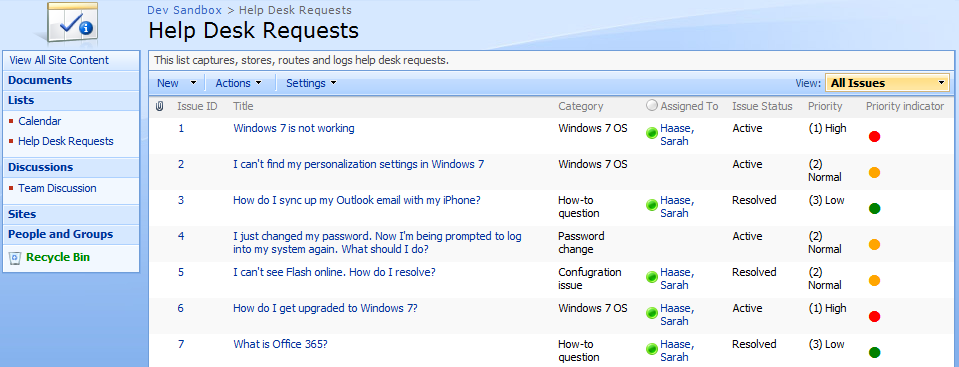
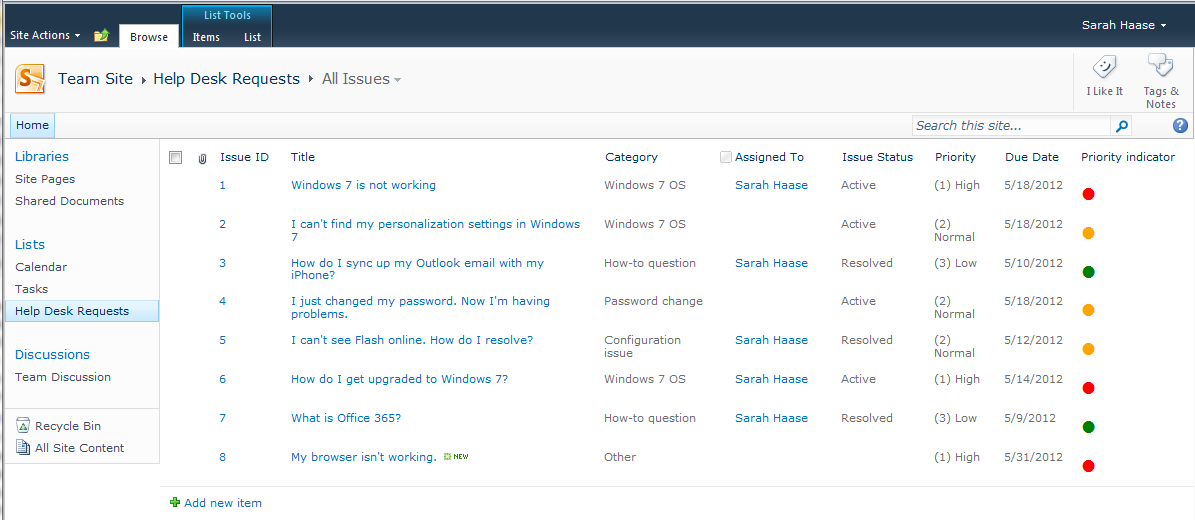
I’ve used a variety of methods for color coding my SharePoint lists and document libraries. I’m using this blog post to share one of my color-coding favorites–the Path to SharePoint solution that uses embedded HTML strings in SharePoint calculated columns to apply color coding. Here’s an example of the types of color coding you can do with this solution:

Setting up this type of color coding is fast–literally 5 minutes of work per list view you want to customize. But navigating the steps for the first time can be daunting. This blog pulls all the steps together in one easy-to-follow process. We’ll start with a business scenario, then move on to setup in both MOSS 2007 and SharePoint 2010. We’ll finish things off by discussing ways you can customize your new color coding.

Business scenario:

My company uses a SharePoint issue tracking list to store help desk support requests. All SharePoint users have the ability to go to this list and create new support requests as needed. When they go to the list and click on the Add new item link, they get a New Item form with the following basic input fields:

  • Title
  • Description
  • Priority
  • Due Date

When a user fills out the New Item form and clicks OK, the help desk ticket information is automatically routed to our help desk team for resolution. To ensure that high priority help requests are easily visible, our help desk manager wants the Priority field in our SharePoint list view to have automated color coding. He’d like all support requests that are High priority to display with a red icon. All Normal priority requests should display with a yellow icon and all Low priority requests should display with a green icon.

And while the team is currently using MOSS 2007, they have plans to upgrade to SharePoint 2010 in the next 3 months. So any color coding solution(s) that we build must work in both platforms.

Solution:

There are a few ways to get this done–including building custom data view web parts in SharePoint Designer. But since our help desk manager wants to modify the colors of his priority icons on the fly (without using SharePoint Designer), we’re going to build out these custom color indicators using HTML encoding embedded in calculated columns. We’ll be using the Priority column that comes with the default Issue Tracking list as the trigger for our color coding. (In other words, the value set in the Priority field will determine whether green, yellow or red color coding is applied to our new calculated field.)

While this solution works in both MOSS 2007 and SharePoint 2010, the setup is a bit different in each platform. Here are the required elements for both platforms:

MOSS 2007 required elements SharePoint 2010 required elements
  • HTML script file (provided by Path to SharePoint) that will render your new HTML tags
  • Document library to house the HTML script file
  • SharePoint list with a Priority column
  • Content Editor Web Part (CEWP)
  • SharePoint list with a Priority column
  • SharePoint Designer 2010

The remainder of this blog post outlines MOSS 2007 setup steps, SharePoint 2010 setup steps and cool ways to customize your new color coding.

MOSS 2007 setup

  1. Go to http://pathtosharepoint.com/Downloads/Forms/AllItems.aspx, expand the HTML Calculated Column group header and download a copy of the TextToHTML-v2.1.1 text file.
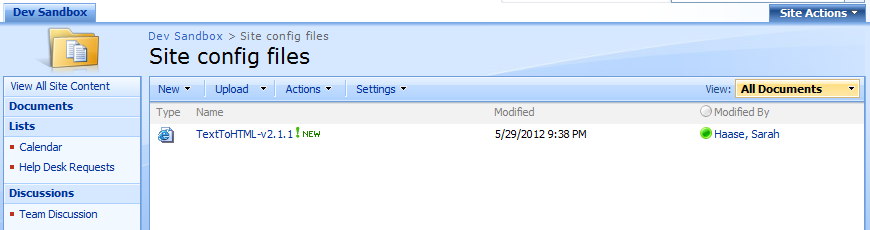
  2. Upload the HTML script file to a document library on your site. As you can see in the screen shot below, I uploaded my file to a document library named Site config files. It doesn’t matter what document library you use to store your file, but make sure all site users have at least read-only access to the library you use. This will ensure the HTML script file can be accessed to render the color coding you’re going to set up.
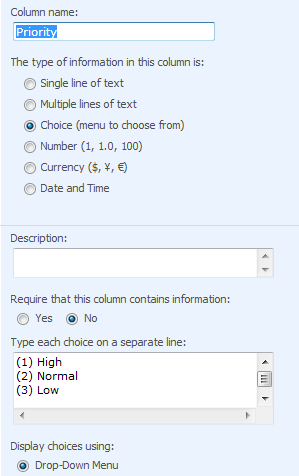
  3. Validate that the SharePoint list or document library that you want to color code is set up with a Priority field with the following basic settings. (Note that these settings come with the out-of-the-box Priority site column, which you can add to your list or document library.)
  4. Browse the color formatting options at http://blog.pathtosharepoint.com/2008/09/01/apply-color-coding-to-your-sharepoint-lists/ and determine which option (e.g. traffic light indicator, font color shading, background shading, KPI icon indicator) you’d like to implement.
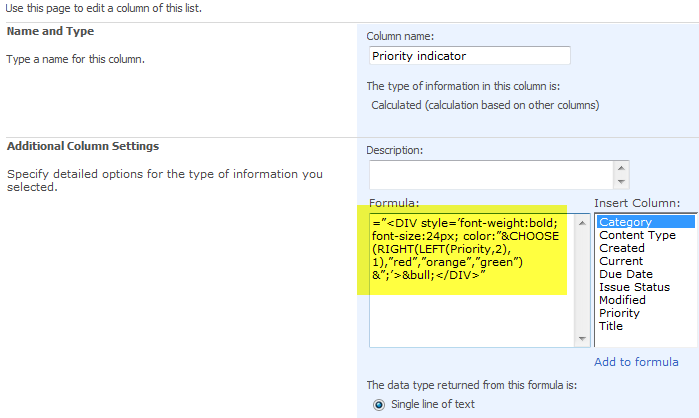
  5. Copy the formula provided for your desired formatting. In my case, I’m looking to implement a traffic light indicator so I copied the following formula:
    ="<DIV style=’font-weight:bold; font-size:24px; color:"&CHOOSE(RIGHT(LEFT(Priority,2),1),"red","orange","green")&";’>&bull;</DIV>"
  6. Add a new calculated column to your SharePoint list. Paste the HTML formula string you copied into the new column’s Formula field. Click OK to save your changes.
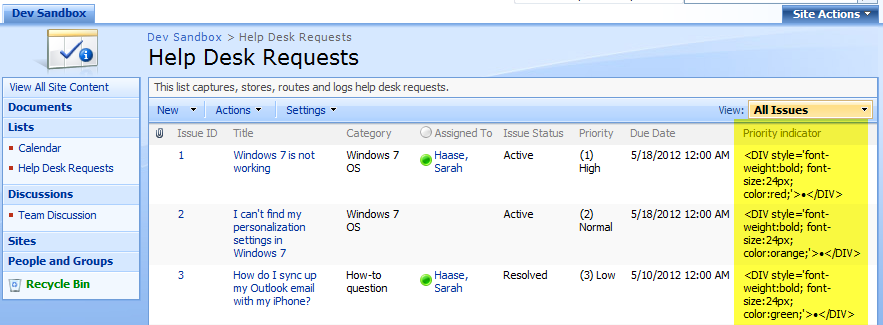
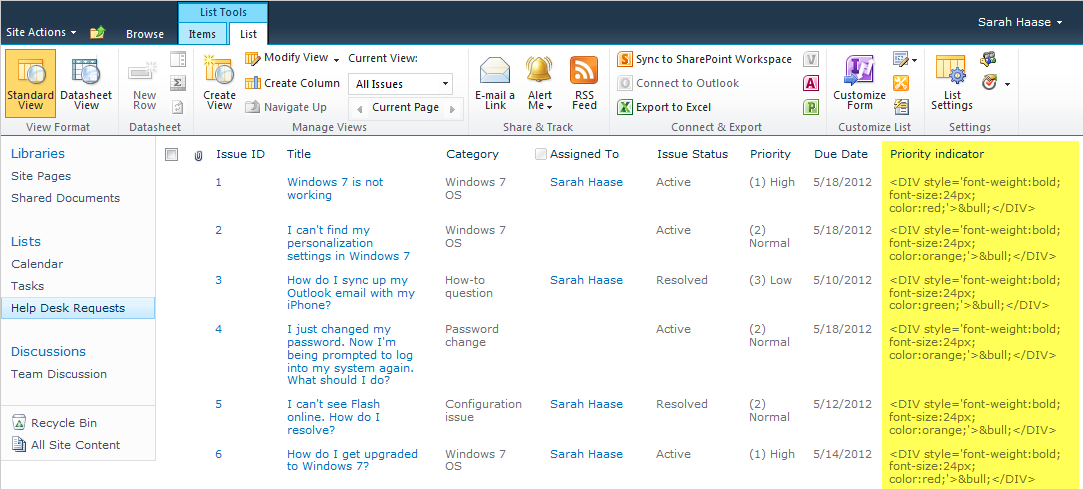
  7. When you return to your list view, you’ll see your new calculated column displaying with <DIV> tags. Not very attractive.
  8. To correct this issue, we’re going to add our HTML script to the page. Click on Site Actions > Edit Page.
  9. Click Add a Web Part and add a new Content Editor Web Part to your page.
  10. Move your new Content Editor Web Part (CEWP) to the bottom of the page. You need it to display below your list view web part.
  11. Click on the CEWP’s open the tool pane hyperlink.

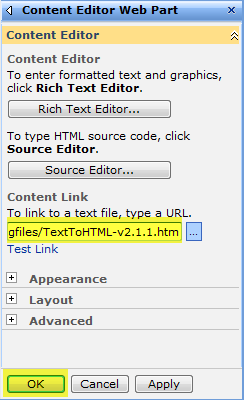
  12. When the web part configuration panel appears, place your cursor in the Content Link field and enter the location where you stored your HTML script file. Click OK to save your changes.

That’s it! Your formatting is applied and your page should now display your new color coded field. Here’s a screen shot of my finished view, complete with a Priority Indicator column that displays red, yellow and green traffic lights that correlate with the priority level of each help desk request:

Now that you’ve set up color coding on one list view, you can continue adding more color coding to this view or add color coding to other views. Note that you will need to add one CEWP to each list view page that you want to color code. There is no limit, however, to the number of calculated columns with HTML encoding you can add to your list.

SharePoint 2010 setup

  1. Validate that the SharePoint list or document library that you want to color code is set up with a Priority field with the following basic settings. (Note that these settings come with the out-of-the-box Priority site column, which you can add to your list or document library.)
  2. Browse the color formatting options at http://blog.pathtosharepoint.com/2008/09/01/apply-color-coding-to-your-sharepoint-lists/ and determine which option (e.g. traffic light indicator, font color shading, background shading, KPI icon indicator) you’d like to implement.
  3. Copy the formula provided for your desired formatting. In my case, I’m looking to implement a traffic light indicator so I copied the following formula:
    ="<DIV style=’font-weight:bold; font-size:24px; color:"&CHOOSE(RIGHT(LEFT(Priority,2),1),"red","orange","green")&";’>&bull;</DIV>"
  4. Add a new calculated column to your SharePoint list. Paste the HTML formula string you copied into the new column’s Formula field. Click OK to save your changes.
  5. When you return to your list view, you’ll see your new calculated column displaying with <DIV> tags. Not very attractive.
  6. To correct this issue, we’re going to need to modify this new calculated column. Open your site in SharePoint Designer 2010.
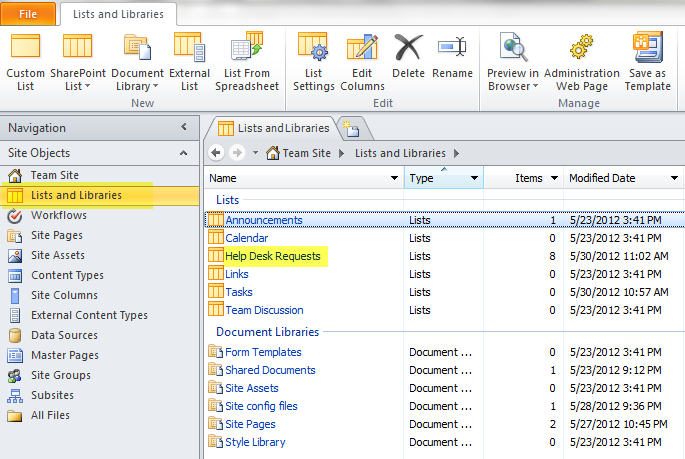
  7. Click on Lists and Libraries in your SharePoint Designer 2010 navigation bar. When the list of your site’s document libraries and lists display, click on the list or document library we’re working on.
  8. When the list or document library details page displays, look for and click on the name of the view you’re applying color coding to. In my case, I am updating the All Issues view.
  9. Once your view opens, click on of the fields that are displaying those ugly

    tags. Notice that the <xsl:value-of> tag in the bottom right-hand corner of your screen lights up in yellow once your field is selected.

  10. Hover over the <xsl:value-of> tag until a black dropdown arrow appears. Click on the dropdown arrow and select Edit Tag…
  11. A dialog box will pop up with the following text:

    Place your cursor between the last quotation mark and the closing > bracket. Now type the text disable-output-escaping=“yes”
  12. Your Quick Tag Editor box should now read like this:
  13. Click on the Quick Tag Editor box’s green checkmark icon to save your changes. Your SharePoint Designer page will refresh and your color coding will appear!
  14. Click File > Save to save your changes.

That’s it! Your formatting is applied and your page should now display your new color coded field. Here’s a screen shot of my finished view, complete with a Priority Indicator column that displays red, yellow and green traffic lights that correlate with the priority level of each help desk request:

Now that you’ve set up color coding on one list view, you can continue adding more color coding to this view or add color coding to other views. Note that you will need to modify the <xsl:value-of> tag for each column you want to display in HTML format. There is no limit, however, to the number of calculated columns with HTML encoding you can add to your list.

Cool ways to customize your color coding

Now that you have your fields set up, you may want to start customizing the look and feel of your new color coding. Changing out the colors that display is quick and easy:

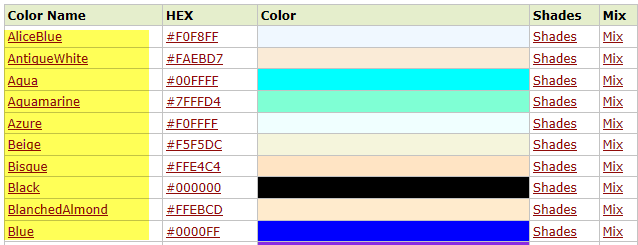
  1. Find the new color(s) you want to use. A wide variety of HTML color choices are available. Here is a site that features a variety of HTML colors that are supported in all browsers: http://www.w3schools.com/tags/ref_colornames.asp
  2. Once you find a new color you’d like to use, note the color’s name.
  3. Go to your SharePoint list’s List Settings page.
  4. Find and click on your new color-coded calculated column.
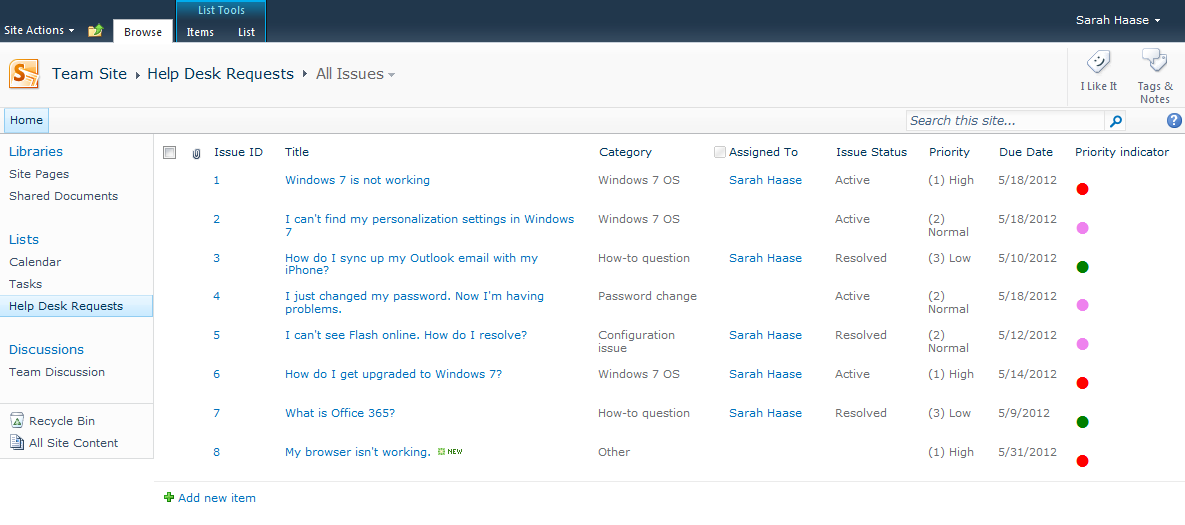
  5. Look at your field’s formula and find the words redorange and green. These are HTML color names that are currently being displayed on your SharePoint site. To modify these colors, all you need to do is replace these color names with the new color names you want to use. If, for example, you wanted to change the color orange to the HTML color Violet, all you need to do is highlight the word orange and replace it with the word violet. Then click OK to save your changes.

Here’s a picture of my list view now that I’ve changed orange to violet. Notice that my “normal” priority items are displaying a violet icon:

But what if you want to make other changes–like using a different trigger field? It is quick and easy to change the name of the field you want to trigger your color coding from. Just go to your calculated column, find the word Priority and change it to the name of the field/column you want to use.

The more difficult bit is changing the valid values that you want to trigger off of. The color coding formulas provided assume that you have a choice field with valid values of:

  • (1) High
  • (2) Normal
  • (3) Low

If you want to trigger color coding off of different values, you will need to tweak your calculated column formula. Fortunately, the fantastic folks at Path to SharePoint have already anticipated this need and have written a follow-up blog post with more formula examples. Take a look – http://blog.pathtosharepoint.com/2008/12/09/color-coding-more-examples/

Broken web part hosing up your web part page? The 30-second fix.

Ever had a broken web part that was preventing your web part page from rendering? A nasty problem. Fortunately, there’s a quick and easy fix:

  1. Go to your broken web part page.
  2. Place your cursor at the end  of your page’s URL string.
  3. Type ?contents=1 (as shown in the example URL below).
  4. Press Enter.
Example URL: https://splibrarian.sharepoint.com/SitePages/Home.aspx?contents=1

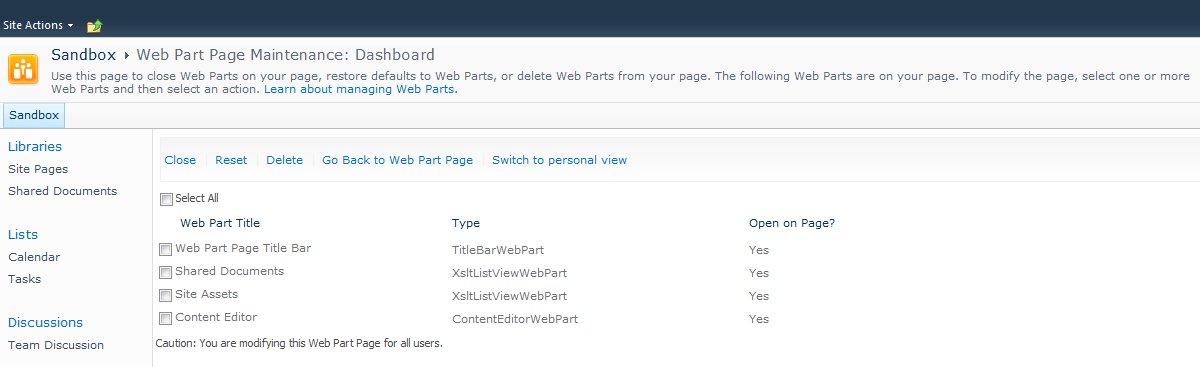
A web part maintenance page will appear (as shown below). It will include a listing of all web parts currently configured as part of your web part page. Just select the web part(s) that are broken and click Delete to remove them from your page. Once the faulty web parts are deleted and your page is rendering again, you can re-add your web parts. (Hopefully without any future breakage.)

A great trick. And yes, it works in MOSS 2007 and SharePoint 2010.

Connecting web parts with a selector and a detail pane (SharePoint 2010 version)

I measure my SharePoint progress by the exciting moments when I finally figure out how to make something work. And I felt like a SharePoint superhero when I discovered how cool (and easy) it was to connect web parts on a web part page.

This blog posts explains how to connect list view web parts. But it goes a step farther, showing how you can build a list view selector that works just like the reading pane in Outlook. So when you select a list item, the corresponding item details will display in a detail pane. If no item is selected, the detail pane remains blank. 

Business scenario:

We use a SharePoint list to store help desk support requests. All SharePoint users have the ability to go to this list and add their support request as a new item. Once they submit their request, the support reps take over ownership of the list item. Support reps, help desk customers and their managers need to be able to look at existing help desk tickets, however. There are a variety of ways to search on help desk tickets (by ticket number, by requestor, etc.), but one of our teams wanted an easy selector screen to see help desk ticket details. To support this request, we built a web part page with connected list view web parts. Here’s what the basic solution looks like:

(click on the image to see a larger view)

When you click on the radio button next to a help desk ticket in Web Part 1, the corresponding help desk ticket details display in Web Part 2. Neat! Now I want to take this one step farther…I want Web Part 2 to appear blank (without any issue details displaying) until a help desk ticket is selected in Web Part 1. Sound useful? If so, keep reading for details on how to build this out.

Solution:

This solution took quite a bit of work to build in MOSS 2007. (See Connecting web parts with a selector and a detail pane: MOSS 2007 version for details.) The whole things is much easier to construct in SharePoint 2010, with only a few required components:

  • SharePoint list (can be virtually any type of list, but this example was built with an Issue Tracking list)
  • Out-of-the-box list view web parts
  • SharePoint 2010 web part page

Ready? Let’s start building!

Part 1: Create your SharePoint list

You can’t build a SharePoint mashup without some data. Make sure you have one or more lists created and seeded with test data.

In my case, I built an Issue Tracking list and populated it with some example help desk tickets.

Part 2: Create your web part page

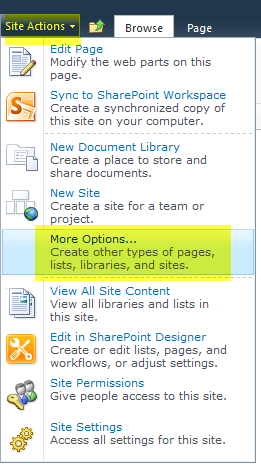
  1. Click Site Actions > More Options.
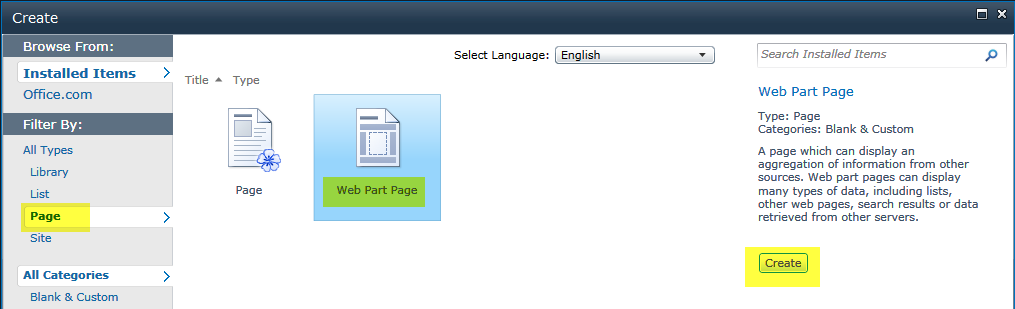
  2. In the left-hand nav bar, click on the Page link to filter by types of pages.
  3. Select Web Part Page and click the Create button.
  4. Specify a name for your new page. I named my new page Dashboard.
  5. Select the formatting/style of web part page you want to use. (This example was built using the “Header, Footer, 3 Columns” web part page.)
  6. Choose which document library you want the new web part page to be stored in and click Create.

Part 3: Add web parts to your new web part page

  1. Go to your web part page.
  2. Click on the Page tab and select Edit Page.
  3. Find the Left Column of your web part page and click its Add a Web Part link.
  4. To find your list view web part, click Lists and Libraries from the Categories list on the left-hand side of your screen. Then find/select your web part from the list provided in the center of your screen and click on the Add button.
  5. Find the Middle Column of your web part page and click its Add a Web Part link. Repeat step 4 above and add a second list view web part to your web part page.

Now you have 2 identical list view web parts displaying on your web part page. Note that from this point on we’ll call the left-hand web part Web Part 1 and the right-hand web part Web Part 2.

Part 4: Configure your web parts

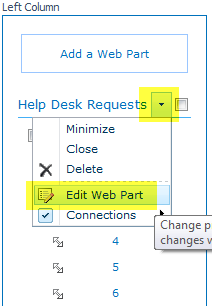
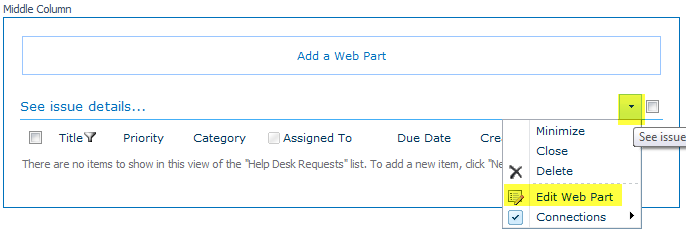
  1. Click on the black dropdown arrow for Web Part 1 (as shown below). When the web part menu displays, click  Edit Web Part.
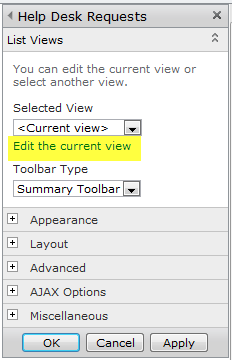
  2. When the web part editor configuration box appears, click Edit the current view.
  3. Configure your web part, selecting the field(s) you want to display, the sort order, the filters to apply, etc. Press OK to save your changes.
  4. Go back into the web part edit screen and make any other desired changes (e.g. change the web part title, the chrome state, the toolbar type, etc.).
  5. Repeat steps 1-4 for Web Part 2.

Part 5: Connect your web parts

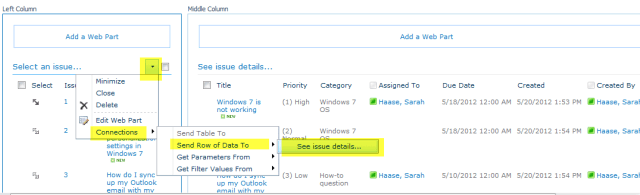
  1. Click on the black dropdown arrow for Web Part 1 (as shown below). When the web part menu displays, click  Connections > Send Row of Data to > Name of your second web part.
  2. If you have pop-ups enabled, a connection dialog box will display. (If you don’t have pop-ups enabled, enable them and repeat this step.)
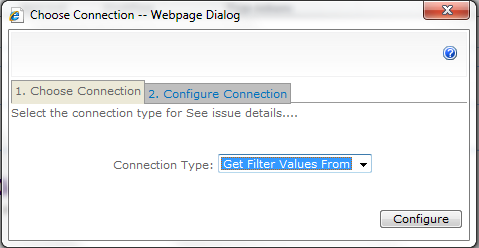
  3. When the “choose connection” dialog box appears, set the Connection Type to Get Filter Values From and click on the Configure button.
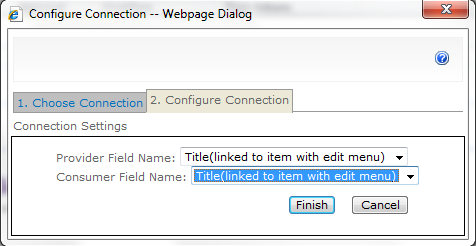
  4. When the “configure connection” dialog box appears, select the fields you are using to sync your two web parts. (In my case, I’m using the Title column to sync my web parts so I selected Title in both the provider & consumer field name drop downs.)
  5. Click Finish to save your connection settings.
  6. You will be prompted to confirm that you want to sync on that column in both lists. Click Next again to confirm.

Congratulations! You have just synced your web parts. If you stop editing your page and select an item from Web Part 1, the corresponding record will display in Web Part 2. Here’s what my web part page looks like after finishing these steps:

(click on the image to see a larger view)

Part 6: Make Web Part 2 display as “blank” until an item in Web Part 1 is selected

In MOSS 2007, this step was a doozy–complete with required setup of a data view web part, parameters, web part properties, etc. Fortunately, Microsoft has made this step quite easy for us in SharePoint 2010. Check it out:

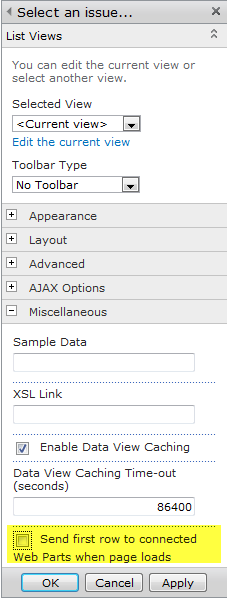
  1. Click on the black dropdown arrow for Web Part 1 (as shown below). When the web part menu displays, select Edit Web Part.
  2. Open the Miscellaneous tab and de-select the “Send first row to connected Web Parts when page loads” option.
  3. Click OK to save your changes.

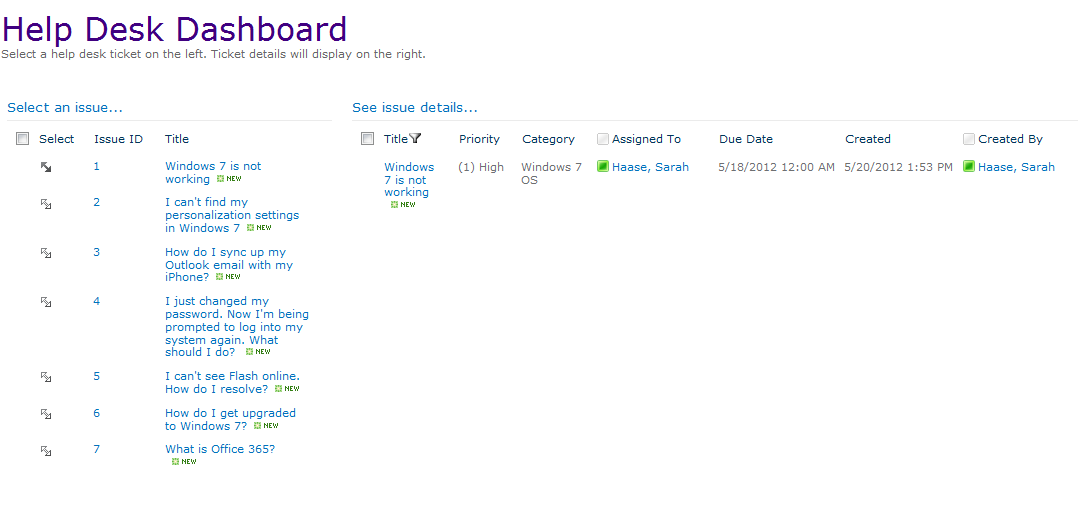
That’s it! We now have a web part page with 2 connected web parts. When a selection is made in the left-hand web part, the corresponding list item details will display in the right-hand web part. If nothing is selected, the right-hand web part will remain blank.

Here’s what my final web part page looks like:

(click on the image to see a larger view)

But remember, this is only the beginning! Think of how else you can bling out your web part page using data view web parts, conditional formatting, etc.

Connecting web parts with a selector and a detail pane (MOSS 2007 version)

I measure my SharePoint progress by the exciting moments when I finally figure out how to make something work. And I felt like a SharePoint superhero when I discovered how cool (and easy) it was to connect web parts on a web part page.

This blog posts explains how to connect list view web parts. But it goes a step farther, showing how you can build a list view selector that works just like the reading pane in Outlook. So when you select a list item, the corresponding item details will display in a detail pane. If no item is selected, the detail pane remains blank.

Business scenario:

We use a SharePoint list to store help desk support requests. All SharePoint users have the ability to go to this list and add their support request as a new item. Once they submit their request, the support reps take over ownership of the list item. Support reps, help desk customers and their managers need to be able to look at existing help desk tickets, however. There are a variety of ways to search on help desk tickets (by ticket number, by requestor, etc.), but one of our teams wanted an easy selector screen to see help desk ticket details. To support this request, we built a web part page with connected list view web parts. Here’s what the basic solution looks like:

(click on the image to see a larger view)

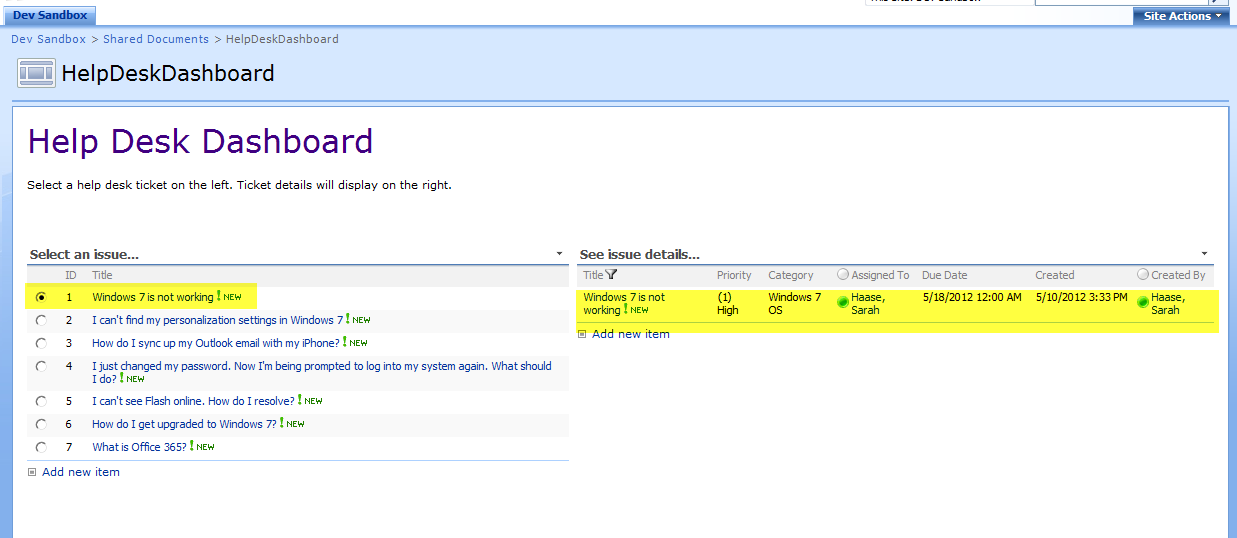
When you click on the radio button next to a help desk ticket in Web Part 1, the corresponding help desk ticket details display in Web Part 2. Here’s what the page looks like when issue ID #1 is selected:

(click on the image to see a larger view)

Neat! Now I want to take this one step farther…I want Web Part 2 to appear blank (without any issue details displaying) until a help desk ticket is selected in Web Part 1. Sound useful? If so, keep reading for details on how to build this out.

Solution:

While this solution can be built out in MOSS 2007 and in SharePoint 2010, the MOSS version does require a bit more leg work. Here are the MOSS 2007 components you’ll need:

  • SharePoint list (can be virtually any type of list, but this example was built with an Issue Tracking list)
  • Out-of-the-box list view web parts
  • MOSS 2007 web part page
  • SharePoint Designer 2007 (required to set up/configure parameters for passing data)

Ready? Let’s start building!

Part 1: Set up your web part page with connected list view web parts

  1. Create the list that will hold the data you want to connect/display.
  2. Create your web part page by going to Site Actions > Create> Web Part Page.
  3. Select the formatting/style of web part page you want to use. (If you’re unsure which format to use, try the “Header, Footer, 3 Columns” web part page. This is the format I used for this example.)
  4. When your new web part page appears, click on Add a Web Part button in the Left Column.
  5. Select the list you created in step 1 above and click Add. You’ve now added Web Part 1 to your page.
  6. Now click the Add a Web Part button in the Right Column.
  7. Select the list you created in step 1 again and click Add. You’ve now added Web Part 2 to your page.
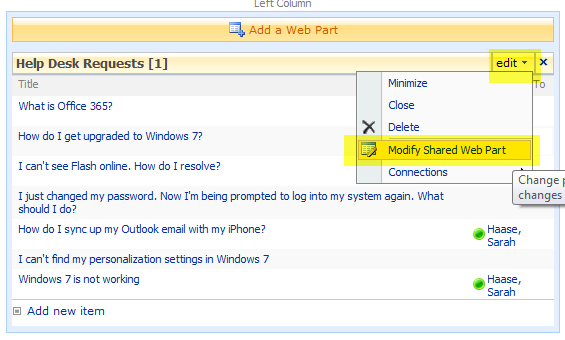
  8. Now it’s time to go into each list view web part and select the columns/fields you want to display in that web part. Click on the edit menu for Web Part 1 and select Modify Shared Web Part.
  9. When the web part config panel displays, click Edit the current view.
  10. Select the field(s) you want to display in Web Part 1. As you can see in my example, I opted to display my ID and Title fields in Web Part 1 and Title, Priority, Category, Assigned To, Due Date, Created and Created By fields in Web Part 2. Note that you must have at least one column that displays in BOTH web parts. This will be your “syncing” column.
  11. When you’ve finished making all your changes, click OK.
  12. For best visibility, also change the Toolbar Type setting. Go to Modify Shared Web Part and set the Toolbar Type dropdown field to “No Toolbar.”
  13. Repeat steps 8-12 for Web Part 2.
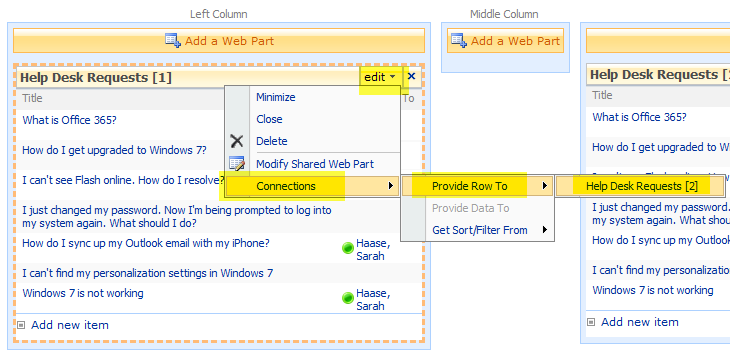
  14. Click on the edit menu for Web Part 1 and select Connections > Provide row to > Name of Web Part 2.
  15. If you have pop-ups enabled, a connection dialog box will display. If you don’t have pop-ups enabled, enable them and repeat this last step.
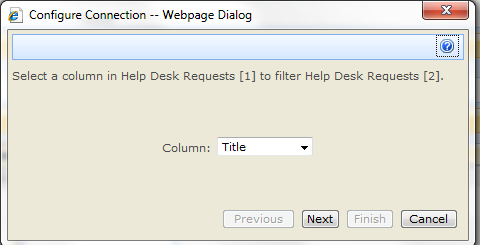
  16. A connection configuration pop-up box will display. Click on the Column dropdown field and select the field you want to use to sync your web parts. Note that the field you choose MUST display on both of your web parts. In my example, I am using the Title field.
  17. Click Next.
  18. Click Next again.
  19. Click Exit Edit Mode to stop editing your page. (If you can’t find the Exit Edit Mode link, look right under your Site Actions button.)

Congratulations! You have just synced your web parts. Now when you select an item from Web Part 1, the corresponding record will display in Web Part 2.

Here’s what my web part page looks like after finishing these steps:

Part 2: Make Web Part 2 display as “blank” until an item in Web Part 1 is selected

To make this happen, we need to pass data between the two web parts via parameters (instead of the “get filter from” connection option). In other words, we’ll force Web Part 1 to send its selected row of data to a data view parameter we’ll create for Web Part 2. We’ll also add a filter to Web Part 2 so it only shows data when Web Part 1  has a selected value. When your page loads, SharePoint will automatically filter out all the records in Web Part 2 since no record will have been selected in Web Part 1 yet. Sound complicated? It is. But don’t worry, the steps are all outlined below. Please pay close attention to the sequence of steps, however. All steps must be followed in the order outlined or the parameters and filter will not work correctly.

  1. Open your web part page in SharePoint Designer 2007.
  2. Highlight the web part that you want to display with zero results on initial page load. (In this case, that’s Web Part 2.)
  3. Right-click the highlighted web part and select Convert to XSLT Data view. You’ll be prompted to convert that you want to make this change. Say OK.
  4. Give your page a minute to refresh. You’ll notice a subtle change in the formatting of Web Part 2. It has now been converted into a data view web part.
  5. Click in the upper right-hand corner of your new data view web part and find the  > smart tag for the web part. (shown below)
  6. Click the > smart tag (aka chevron) and select the Parameters… option.
  7. Click on the New Parameter button.
  8. Specify a name for your new parameter. You can use whatever name you like; just make sure the name is something you’ll remember (for at least the next few minutes) and make sure the name doesn’t contain spaces.
  9. Keep all parameter defaults and click OK. The parameters screen should look roughly as follows:
  10. You’ll be returned to your data view web part. Click on the > chevron and select Filter.
  11. You want to set up a new filter rule that says Field = New parameter, where “Field” is the column you used to sync your connected web parts in Part 1 above and “New parameter” is the parameter you named in step 6. You will pick your field name and your parameter from the dropdowns provided. (Note that your new parameter will appear near the bottom of the Value selection list.) The screen shot below shows my completed filter. As you can see, I used the field Title to sync my web parts and I named my new parameter Param1.)
  12. Click OK to save your new filter.
  13. You’ll be returned to your data view web part. Click on the > chevron and select Web Part Connections…
  14. When the Web Part Connection Wizard dialogue box opens, reset the action dropdown field to “Get Parameters From” as shown below:
  15. Click the Next button repeatedly until you get to the screen shown below. When you get to this dialog, select the following options:
    • In the middle row of the left column, select the column you used to sync your web parts. (In my case, this was the Title field.)
    • In the middle row of the right-hand column, select the new parameter you created in step 6. (In my case, this was the Param1 parameter.)
  16. Click on the Next button.
  17. Click Finish to close out the web part connections dialog box.
  18. You’ll be returned to your data view web part. Click on the > chevron and select Data View Properties…
  19. Go to the General tab and click on the checkbox that says Display text if no matching items are found. In the provided text box, specify the default text you want to display when Web Part 2 is empty. Here’s what my text looks like:
  20. Click OK to save your changes.
  21. Save your web part page in SharePoint Designer. If you are prompted to confirm your changes, say yes.
  22. Preview your changes in the browser.

My final solution looks like this:

We’re off to a great start, but there is so much more that you can do. At this point you have Web Part 2 set up as a data view web part (DVWP). Bling out that DVWP to display conditional formatting or to build editable fields right on your web part page. Let your imagination run wild–this is only the beginning!

Epilogue on having a “customized” or “unghosted” page

As you complete the steps outlined above and turn Web Part 2 into a data view web part, you are effectively customizing (or unghosting) your web part page. There is some debate in the community about unghosting pages, with some calling it a bad practice while others say it is called for on some occasions. I’m going to leave that debate up to the experts, but do want to call out that in some situations unghosted web part pages can lead to upgrade difficulties. To avoid this issue, you can export Web Part 2 from its current web part page and import it onto a clean, new web part page. Once you add Web Part 1 to your new web part page you can connect your web parts again. (This time, however, you will have the option of sending your data via parameters.)  Exporting/importing your DVWP won’t affect the functionality of your connected web parts–it will merely ensure that your new (final) web part page won’t be customized or unghosted. Once  you’ve completed this export/import process, you can then go back and delete your initial web part page.

There are some excellent blog posts that outline the steps for exporting/importing data view web parts. Check out http://www.wictorwilen.se/Post/How-to-export-and-reuse-the-Data-View-Web-Part.aspx for step-by-steps.

Understanding user adoption in 3 minutes or less…

Michael Sampson recently published the blog post: What’s the Key to Successful Adoption of “Social Business”? With a title like this, you’d expect to see a 10-page narrative outlining all the key reasons why social is critical to your business’ success. The narrative may include all the key decision factors for going social but wouldn’t provide details on how to get there.

Michael’s approach was shorter (and more effective). Rather than diving into the conceptual, he provided a video clip from the recent Unified Communications Expo. The video combines clips from six user adoption experts, providing a 3-minute summary of user adoption strategies. Some of the salient recommendations include:

  • Design your approach to meet and solve real business problems. Don’t build a platform just to build a platform.
  • Please your customers. Please your customers. Please your customers.
  • Embed social into your internal business processes. (aka align social to the way your users work)

Take a look:


Footnote:

Michael has an excellent book (referenced during the video clip) that summarizes collaboration user adoption strategies. An updated version of this book is due out in 2012. Stay tuned to Michael’s web site for more information.

#SHARE2012 Conference Recap

Last week I was in Atlanta at the SHARE conference. There aren’t many events that would inspire a 3:30 am wake-up call to catch a flight, but SHARE conferences are the exception! Designed strictly for SharePoint business users, SHARE provides a unique opportunity to learn from SharePoint practitioners embedded in active business teams.

While The Eventful Group has had great success holding SHARE conferences in Australia and South Africa, this was the first U.S.-based SHARE event. To ensure the mix of sessions and topics was bang-on, The Eventful Group hosted a series of focus groups and information gathering sessions. Based on the feedback they received, The Eventful Group built the SHARE conference around several key topic areas:

  • Governance
  • Information Architecture
  • Search
  • Training
  • User Adoption
  • Realizing the Value of SharePoint (my personal favorite)
  • Executive Sponsorship
  • Culture & Enterprise Change Management
  • Enterprise Content Management
  • etc.

While the conference included fabulous industry experts (Ruven Gotz, Dux Raymond Sy, Sue Hanley, Jeremy Thake, Richard Harbridge, Adam Quinn, Christian Buckley, Ramin Mobasseri, Bonnie Surma, Michael Sampson, etc.), it also afforded the opportunity to meet new SharePoint business folks from across the country. With case studies from companies like Siemens, Del Monte, eBay, Turner Broadcasting, Nielsen, Diebold and National Gypsum, I was able to see and learn how many of my peers are implementing SharePoint successfully at their organizations.

Here are some of my favorite one-liners & key messages from the event:

  • “Start with a solution that solves a problem” – Sue Hanley
  • Governance in 3 words: “No Sharp Edges” – Sue Hanley
  • It’s not enough to have a governance plan. It must be CONSUMABLE – Sue Hanley
  • Executives vs. SharePoint believers: We don’t talk the same language and we have different goals. – Michael Sampson
  • “Success is 90% people, 10% technology.” – Michael Sampson
  • You have to build credibility with your executives. Stop being the excited teenager.  – Michael Sampson
  • You have to earn the right to talk to your executives about SharePoint – Michael Sampson
  • Make user adoption FUN: “SharePointober-fest! (Inebriate while you Collaborate)” – Scott Smith
  • Blogs are the breeding ground for thought leadership. Read and comment on other’s blogs. – Jonathan Lightfoot
  • “Governance = Balance. Balance between the wants of end users and the regulations of how to use the tool.” – Adam Quinn
  • “Aim to provide Order and Enablement.” – Adam Quinn

I also had the good fortune to present a few sessions at this event. My track session “Turning the Tide: From Chaos to Clarity” went very well–right up until I nearly killed myself (and everyone else) by getting too close to the audio speaker. I still have a faint ringing in my right ear…

The governance panel I participated in with Richard Harbridge, Sue Hanley and Adam Quinn was also well-received. Jeremy Thake did a GREAT job moderating the discussion and several of the attendees commented afterwards that the session was very useful.

My last session was the event’s closing keynote. While I love the topic (session title = “It Doesn’t Take A Miracle: Driving Successful User Adoption”), I quickly realized it isn’t easy being the happy hour prequel. The attendees were fantastic, though. By the close of the session, we were all looking to find the “first follower” that would transform us from being the lone SharePoint nut to the SharePoint leader at our organization!

A big thank you to The Eventful Group for including me in this event. It was great to meet, connect and learn from new friends (Ryan Mattison, Wendy Neal, Zuri Stanback, Charles McCann, Jovan Breckenridge, Daniel Patton, et. al.). And with a hotel room on the 45th floor of the Marriott Marquis, the conference even afforded me some time to work on my fear of heights!

This slideshow requires JavaScript.

#spstc smashes our previous record, becoming one of the largest SharePoint Saturdays ever!

SharePoint Saturday Twin Cities ROCKED this weekend with 450+ attendees! By our estimations, this places us right behind SharePoint Saturday DC as the most well-attended SharePoint Saturday event EVER. Thanks to all our organizing staff, volunteers, speakers, sponsors and attendees for making this such a fabulous event. Our continued success ensures that this event will be around for many years to come…

We kicked things off on Friday with event setup. We had an army of 20+ tackling all the work, and were able to unload all our materials, organize sponsor exhibition tables, assemble sponsor/speaker gift bags, place signs and stuff attendee bags in a record 2 hours. Not an easy feat! A big thanks to Cyndi Kesler, Irene Kesler, Mary Neumann, Avi Sujeeth, Dave Hall, Lynne Figg, Phil Jirsa, Raymond Mitchell, Don Donais, Colleen Haviland, Tamara Bredemus, Wes Preston and many others for your efforts.

The speaker dinner was held Friday night at Tavern on France. Great food, great company and an amazing assortment of SharePoint knowledge all in one place. We had a great mix of attendees join in for SharePint starting at 8:30 pm. Great to meet attendees who drove long distances to attend the event–including a special shout out to the UWEC and CVTC folks from my hometown of Eau Claire, Wisconsin. Great to see you!

Saturday morning got off to an early start with a 4:45 am wake-up call. By 7 am we were on site at Normandale Community College amassing our volunteer workforce. (While we’ve had outstanding volunteers at all our previous events, we knew that pulling off this 450+ person event was going to take an army of help. We’re so fortunate to have an active SharePoint community that really jumped in to help us out!) By 8 am registration was up and running and we had 30+ volunteers handing out lanyards, pointing people towards breakfast and handing out attendee t-shirts and bags. A special “thank you” to Edith Young for hanging with me as chief troubleshooter Saturday morning. Much appreciated!

When we kicked off the event at 9 am, Normandale’s 400-seater Auditorium was filled to capacity. Our slogan for this event was “Occupy SharePoint.” A popular choice, but attendees loved hearing our other rejected slogans:

  • Come for the mall, stay for the SharePoint. SharePoint Saturday Twin Cities.
  • Smart people, good food AND I learned something. Must be SharePoint Saturday Twin Cities!
  • Adopt an End User today at SharePoint Saturday Twin Cities.
  • Keep your End Users happy and healthy. Remember to spay and neuter.
  • SharePoint Saturday Twin Cities – April 14, 2012. More fun than taxes!
  • Hmmm. That worked at SharePoint Saturday Twin Cities…

And yes, these slogans are all created by Tamara Bredemus, our fantastic comedic talent 🙂

The rest of the day went by in a blur. We had 30 fantastic sessions, a vendor exhibition area that was packed to capacity and great food/networking opportunities. To help wind down after the big day, we took a bunch of speakers and attendees to Khan’s Mongolian BBQ for dinner. Follow that up with some rollercoaster rides at the Mall of America and you have a FULL day.

It’s impossible to thank everyone who had a hand in this event, but please know that it could not succeed without a huge amount of positive energy! It also wouldn’t have been the same without many of our fantastic speakers that came great distances to attend. Thanks to Mark Rackley, Richard Harbridge, Jeff Willinger, Kim Frehe, Doug Hemminger, Tasha Scott, Mary Leigh Mackie, et. al. for traveling to Minneapolis for this event. And a special thanks to Sean McDonough for making a repeat appearance. You make everything more fun, man!

For those of you that can’t wait for another SharePoint Saturday Twin Cities, don’t despair…we’re already locking in a date for the fall. Stay tuned for more information.

This slideshow requires JavaScript.

Using calculated fields to prioritize your SharePoint projects

I have to admit it…as a SharePoint practitioner I’m often guilty of overthinking. It’s easy to get drawn into designing complex solutions while overlooking simple features that generate a lot of user interest. I think this is a predictable problem, though. As we gain expertise in understanding how a platform like SharePoint works, we often gravitate to looking at complex, highly detailed solutions rather than focusing on the quick wins using “simple” functionality.

This blog post is all about the quick win, though. If you’ve seen me present at conferences or SharePoint user groups before, you know I’m passionate about documenting ROI for SharePoint projects. I follow up and formalize the business value of all my implementations (see my previous blog post I need some ROI…but I have no idea where to begin! for details). But I use ROI as more than just a means to summarize the value of projects I’ve completed. I start capturing ROI data during requirements gathering and rely on ROI estimates to prioritize my SharePoint project queue. This blog post walks through the simple SharePoint solution I built to use ROI estimates to auto-prioritize my projects.

First, let’s look at the completed solution. In the screen shot below, you can see a “SharePoint Requests” web part that displays my SharePoint project queue. Notice the Priority column. This is a calculated column that automatically assigns a low/medium/high priority to each project based on an automated ROI calculation. I use this priority rating to manage my queue of projects and determine my build/deploy schedule. 

Here are the steps to build out this project prioritizer:

  1. Create a new custom list in SharePoint.
  2. Add in the fields you need to track your Sharepoint requests. My list contains the following fields:
    • Project name – text field
    • Requestor(s) – person/group field
    • Request type – choice field
    • Team – text field
    • Request date – date field
    • Status – choice field
    • Collaboration owner – person/group field
    • Estimated ROI per year – currency field
    • Estimated hours to implement – number field
    • Start date – date field
    • Due date – date field
    • High-level goals – multiple lines of text field
    • Detailed requirements – multiple lines of text field

    NOTE: The Estimated ROI per year and the Estimated hours to implement fields must be set up in your new list. They will be essential for the priority calculation.

  3. Now that your base list is ready, you can set up your automated priority calculation. Go into your List Settings and create a new Calculated column named Priority (raw). Copy and paste the following text into the column’s Formula field:

    =IF(ISERROR([Estimated ROI per year]/[Estimated hours to implement]),”-“,[Estimated ROI per year]/[Estimated hours to implement])

    Specify that the data type returned by this formula be a number and press OK to save the settings for this new field.

  4.  Now you have an automatic calculation for your project priorities. But as you start entering data into your list, you’ll see that these numeric results aren’t terribly helpful. Depending on the values you enter into the Estimated ROI per year and the Estimated hours to implementfields, you may end up with raw priority numbers like 6,250 or 71.428571428571.

    I’m no math whiz, but I know I can’t make sense of these numbers. In fact, their only inherent value is their position relative to each other. Fortunately, we’re not done yet! There’s still one more calculated column to set up…

  5. Go into List Settings and create a second Calculated column named Priority. Copy and paste the following text into the column’s Formula field:

    =IF([Priority (raw)]=”-“,”-“,(IF([Priority (raw)]<650,(IF([Priority (raw)]<300,”Low”,”Medium”)),”High”)))

    Specify the data type returned by this formula to be a Single line of text and press OK to save the settings for this new field.

  6. View your results. As you enter new projects and specify their estimated annual ROI and estimated hours to implement, you will see a raw numerical priority value and a subsequent priority ranking of Low, Medium or High.

If you like, you can even change the default numerical thresholds that translate your Priority (raw) values into Low, Medium or High rankings. Just tweak the “650” and “300” numerals in the Priority field’s formula to alter the default thresholds and find the specific differentiators that will best meet your needs.

Next steps I’ve been meaning to try include color-coding my prioritizations and building a fancier dashboard. But that’s for a later blog post 🙂