 When I started working with SharePoint in 2003, I used multi-word names for everything–my sites, my libraries and lists, even my column names. It didn’t take me long to realize that spaces wreak havoc on my URLs. Since each space in my name causes a %20 string to appear in my URL, my URLs quickly became long and unwieldy.
Creating a new SharePoint site named Help Desk, for example, results in the URL:
https://splibrarian.sharepoint.com/Help%20Desk/SitePages/Home.aspx
If I create a new document library on that site named Sarah Haase, my new library’s URL lengthens to:
https://splibrarian.sharepoint.com/Help%20Desk/Sarah%20Haase/Forms/AllItems.aspx
And when I add the nested folders Fiscal Year 2013 > Projects > Project X > Design Documents to my document library, my URL extends to:
You can quickly see how a deep nested folder structure (complete with spaces in your library and folder names) can negatively impact your user’s URL experience. But this problem is easily circumvented. If you create your sites, document libraries and lists using names without spaces (e.g. HelpDesk), you’ll avoid adding %20 strings to your URLs. Once your sites, libraries and lists are created, you can go back and update their names to include spaces. This will add “friendly” spaces back into your site, library and list names without damaging your nice (short) URLs.
But what about column names?
I recently learned that spaces in your column names can also cause difficulties. When you create a new document library or list column, SharePoint automatically sets an “internal name” for the column. This internal name is the ID for your column. You may need to know and reference this internal name as you build out new SharePoint solutions or customize the look and feel of your Content Query Web Parts (CQWPs).
So how do you find out what the internal name is for your columns? Go into your document library settings or list settings page and click on the hyperlink for your column. When the column’s detail page appears, take a look at the URL that appears at the top of the page. Your column’s internal name will appear at the end of the URL after the string Field=
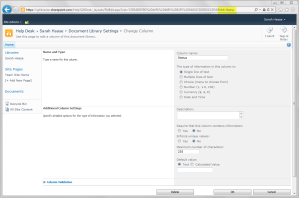
SharePoint bases your column’s internal name off the “friendly name” you give your column when you first create it. If you create a new column named DocumentType, for example, your column’s internal name will be DocumentType.
If you include spaces in the name of your new column, SharePoint adds a string of additional characters to your column’s internal name. As the following screen shot illustrates, a new column named Category Type results in the internal name Category%5Fx0020%5FType
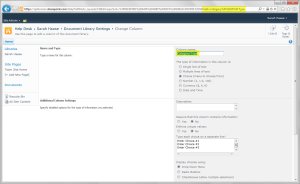
The more words you add to your column’s initial name, the longer your column’s internal name will become. If you name your column:
What is your business justification for this change
Your column’s internal name will be:
What%5Fx0020%5Fis%5Fx0020%5Fyour%5Fx0020%5Fbusiness%5Fx0020%5Fjustification%5Fx0020%5Ffor%5Fx0020%5Fthis%5Fx0020%5Fchange%5Fx003f%5F
Once your column is created and the internal name is set, you cannot change it. Your only option is to delete your initial column and re-create it.
To limit the length and complexity of your internal column names, treat your columns like you treat your document libraries, lists and sites. Keep your column names short and do not include spaces. Once your column is created and your column’s internal name is defined, you can always go back in and edit your column name and add additional words or spaces. This will make your column name more “friendly” without lengthening your column’s internal name.
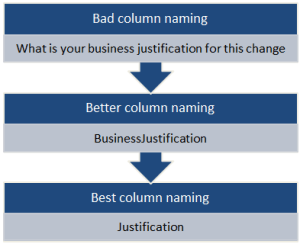
And think carefully before you repurpose old columns in your lists and libraries. While you may change the name of your column an infinite number of times, the internal name for your column won’t change.
References
I first learned about internal column names during Peter Serzo’s CQWP session at SharePoint Saturday Twin Cities. For more information on the “limitless” CQWP, see Peter’s presentation.
Wes Preston recently published a blog post on internal columns and their impact on the client-side rendering functionality in SharePoint 2013.







 Sarah Haase