Atlassian Summit 2011 Recap

Last week I attended the Atlassian Summit 2011 conference, held in San Francisco at the Intercontinental hotel. I was a newbie (first time attending this particular conference), but had a fantastic experience.

My path to attend this conference was unusual. Normally you hear about great conferences and are sad to have missed out on the experience. Not so with Atlassian! After last year’s summit, Atlassian posted videos from all the sessions. Anyone could view the videos and get some free training. What a great move! It showed off the quality of sessions and (in my case) built my business case for attending the next event. 

Here’s my list of faves from this event:

  1. The keynote sessions provided real value and real humor. We expected Atlassian to announce product changes/upgrades. But announcing the right updates with the right level of detail couched in Star Wars speak is a winning combination. These aren’t just techie nerds–they’re techie nerds with a sense of humor that the broader public can understand and appreciate!
  2. Confluence version 4.0’s new rich media interface. Gone are the days of Rich Text vs. Wiki Markup. Atlassian has rebuilt their Confluence interface to store data in XHTML format. As you type, the new editor will auto-format and invoke your rich text features. Want a level 1 heading? Just type “h1” at the beginning of your heading and Confluence will automatically apply the correct formatting and remove your “h1” text. Beautiful!
  3. The LaunchPad event. Atlassian gave a bevy of sponsors the opportunity to get in front of the entire conference for a 5-minute sales pitch. There’s a catch, though…attendees got the chance to vote on each vendor, rating them as “the next great thing” or “the next great disaster.” Votes are tallied and displayed immediately, putting the pressure on sponsors to be entertaining, informative and cool under pressure. This was a fantastic way for newbies like me to see the spectrum of third-party players while keeping things fun and interesting. Great job!
  4. Martin Seibert’s presentation “Wiki adoption: How sweat and gimmicks make a great wiki.” Martin Seibert rocks. This presentation alone made the trip to San Francisco worthwhile. I loved his view of heaven as a wiki…and his parallel realization that being alone in the wiki was hell. I also loved his quote “Strong organizational support is the biggest task for all enterprise wikis. No matter what.” After all, sometimes IT systems are the only things that are broken. Sometimes users (and their patterns for sharing/collecting information) are broken too. To see the slides from Martin’s session, you can go to http://prezi.com/aa06zpy_68a5/wiki-adoption-how-sweat-and-gimmicks-make-a-great-wiki/ 
  5. The AtlasBar. Let’s face it, I came here with questions. And I needed answers. Fortunately, Atlassian had a bevy of support techs on hand to handle walk-up questions. I was able to get in, get my questions answered AND talk features and application use quickly and easily. All without missing any sessions. Love it!

From where I stand, Atlassian only had one big miss with this event. While Atlassian has done a good job building connectors and plugins to work with Microsoft products, they undersold this work too much. And a couple of Atlassian folks spent too much time Microsoft bashing. I understand zealous feelings for (and against) certain software providers, but I manage to rise above and enjoy using the best features of my iPhone and SharePoint all in the same day.

Many of the attendees I talked to are trying to figure out how to use a variety of tools (including SharePoint, Microsoft Office and Confluence) on a daily basis. Atlassian needs to remain focused on making their customers’ lives easier–not criticizing or ridiculing them for using products they have a personal aversion to.

All in all, though, Atlassian did a fantastic job. This is a conference I’ll definitely recommend to others. And I’ll be a repeat customer.

On the horizon: SharePoint Saturday Chicago (6.11.2011)

I’m looking forward to a fantastic summer. We’ve got vacations to go on, parties to host/attend, a paver front walkway to rip out and redo (yuck) and time to sit out on the back porch with friends. With all that on tap, I’m still looking forward to attending SharePoint Saturday Chicago in early June. Here’s a few key reasons why:

  • It’s the *first* SharePoint Saturday I’ve had the chance to attend (outside of SPS Twin Cities)
  • It’s launching a new SharePoint 101 track I’m incredibly excited about! The track includes 4 building-block sessions that layer together to provide a complete roadmap for SharePoint. It’ll take you from the basics (aka what is SharePoint and what can I do with it?) through the requirements definition and future-proofing/governance processes and culminate with a look at real-world implementations and guidelines for calculating ROI on your implementation. An incredible track of sessions, all available for FREE just by attending. (Note: The final schedule has not been posted yet, but it looks like I’m the final leg of this 101-track, coming in at the end to present on ROI.)
  • It’s giving me the chance to catch up with some SharePoint friends I don’t get to see too often (Chris Geier, Ruven Gotz, Richard Harbridge, Cathy Dew, etc.) while also giving me the chance to hang out with local Twin Cities SharePoint gurus Wes Preston, Virgil Carroll and Raymond Mitchell.
  • It’s the first SharePoint event I get to bring my hubby to! Jason is usually holding down the home front while I get to wander about and talk about SharePoint. I’m looking forward to bringing him along for the ride. We’ll have to wait to see how much of a heckler he is… 

Want more information? Check out the SPS Chicago site. Here’s a marketing blurb from the event’s organizers:

This year’s suburban edition of SharePoint Saturday 2011 will feature 3 unique tracks in hopes to provide more value to the attendees.  These unique tracks will be

1. SharePoint 101 and will seek to walk users through the beginning of their SharePoint journey from the basics of what is SharePoint to planning your implementation.

2. Office365.  You have heard about it, but what is it really and how may it apply to your needs?

3. Advanced topics in SharePoint.  If you are one that typically does not go to user group or community events because there is not enough depth. This track is for you.  We will be showcasing some experts in the SharePoint community imparting their bits of wisdom. 

In short this year’s suburban edition will seek to provide something for everyone, and attract an audience from the entire spectrum.

SharePoint Saturday Twin Cities recap

Last Saturday (April 9th) was our third SharePoint Saturday Twin Cities event. It was fabulous! The event involved:

7 months of planning
16 sponsors
20 sessions; 2 half-day deep dives
260+ attendees
50 gallons of coffee served

We started off Friday afternoon with setup at Normandale Community College. We had an oustanding team, and managed to get everything ready in record time! Thanks to Colleen Haviland, Mary Neumann, Angela Spores, Cyndi & Irene Kesler, Wes Preston, Raymond Mitchell, Cheryl Lesser, Don Donais and Chaitanya Khaladkar for all your help.

Next up, speaker dinner at Tavern On France. Was great to get the chance to meet some new folks, including Troy Ronning, Sean McDonough, Jason Trent and Carlos Valcarcel. Had a great dinner, hilarious conversation with Wes Preston, Raymond Mitchell et. al. and a to-die-for piece of chocolate cake.

We stayed after the speaker dinner for SharePint. We’ve never had the SharePint on the night before the event, but attendance was great. We had 25-30 attendees drop by (including Johnny Harbieh, Becka Armagost, Fred Baer, Jennifer Devens & Nick Giuliano) to kick things off. By far, the best SharePint we’ve had at SPSTC. Look for us to continue the Friday night trend on that in the future.

Day-of event, the planning committee was on-site at 7 am. The vendor area was humming by 7:30, and by 8:15 attendees were streaming in. We had 6-7 people covering registration, but the people kept coming! We ran out of attendees t-shirts by 8:45 am and were thrilled to smash our earlier attendance records! In October 2010 we had 150 attendees. It’s amazing how quickly we’ve grown to the 300 attendee mark.

We kicked off the day with the Welcome session and the top 10 list why SharePoint Saturday Twin Cities rocks. Here it is:

10. We have a cool hashtag – #spstc

9. We have 30 hours of presentations by 20 speakers. Sorry, though, there’s no session on splitting yourself like an amoeba. You can only go to 1 session at a time.

8. We’ve doubled our previous record for attendees. (This means even more people for you to follow on Twitter!)

7. Fitness is no longer a part of SharePoint Saturday. You don’t have to walk miles from the parking lot to the sessions.

6. Free food! With healthy choices. But don’t panic, we still have unhealthy choices.

5. Sponsors! Sponsors! Sponsors! Stop by their booth and say, “Thanks for the free event.”

4. We’ll track down presentations for you and upload them to our SharePoint site.

3. You don’t have to go outside to get to any of the sessions. (Inside joke for any of you that attended SPSTC at the University of Minnesota.)

2. You don’t have to fight Gopher fans (or take out a second mortgage) to get a parking spot.

1. You can win a Kinect! And we’ll even give you the Xbox to go with it.

Once we kicked things off, the day flew by. Attendees flooded the session rooms and visited the vendor booths. Lunch included networking and a chance to play the Kinect. My session, “I need some ROI…but I have no idea where to begin!” provided a great opportunity to get to know attendees (and their organizations) a bit better.

We finished off the day with a wrap/giveaway party. We had a bunch of Best Buy gift cards, educational books/DVDs, SharePoint Saturday shirts, an iPod shuffle and the Xbox/Kinect. Congrats to all the winners!

After the event was over, a few of us went to Khan’s Mongolian Barbeque. A perfect way to sum up the weekend. Am looking forward to the next SharePoint Saturday–after a bit of rest.

A couple of final notes:

I want to thank my volunteer team for all their help in making this event a grand success. We couldn’t do it without you!

This slideshow requires JavaScript.

I need some ROI…but I have no idea where to begin!

I’m creating/delivering a new presentation at SharePoint Saturday Twin Cities this weekend. It’s all about ROI. What it is, where companies go wrong in their quest to find it and how individuals can get a jump-start on quantifying it.

I’m passionate about ROI. It’s a game-changer. It’s the final step that many people forget to take after implementing a successful solution. But pulling together my thoughts on ROI and how to get started finding it in your SharePoint implementation has been tough. After spending a few frustrating hours trying to force the issue, I took a step back. That’s when I realized what I had missed. This focus on ROI has nothing to do with SharePoint. Rather, it has to do with successful product and project implementation–regardless of the platform you are using.

After resetting my context, I broke my session down into 3 basic parts–what is ROI, methodolgies/units of measure for tracking it and how to get started quantifying it. Once we have this base in place, we’ll look at how companies currently measure SharePoint ROI and compare that to how they could/should measure their ROI.  We’ll examine the costs of not focusing on ROI and take a look at industry trends around BPM and ROI.

Then we’ll move on to examining the types of ROI that can be tracked and look at real-world examples of each. Along the way, we’ll discuss calculation formulas, review minimum requirements for quantifying ROI and lay out a roadmap of how to get started on your ROI journey.

This could be a 2-day course. And I’m delivering an overview of it in 75 minutes. Strap yourselves in, folks!

Update (Sept. 7, 2011) – I’ve updated this presentation. Get a copy on SlideShare at http://www.slideshare.net/sarahhaase/i-need-some-roi-but-i-have-no-idea-where-to-begin-9169138

#11 on the list of things I wish I’d known a long time ago…

Have you ever tried to open a data view web part (DVWP) in SharePoint Designer only to discover the page won’t load because it has too many records to try and display? Frustrating.

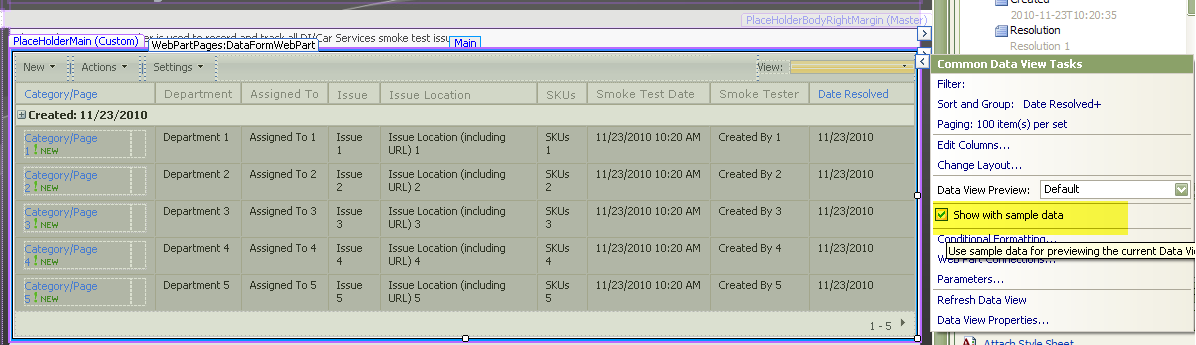
SharePoint Designer has an incredibly handy “Show with sample data” option that is intended to solve this problem. When you check this option, your DVWP will refresh and appear with 5 sample records. These sample records enable quick and easy rendering in SharePoint Designer but do not impact storage of your actual DVWP data.

But what if you don’t have “Show with sample data” turned on AND you can’t get your DVWP to load in SharePoint Designer because there are too many records? I ran into this issue several times before discovering that you can quickly and easily turn on the “Show with sample data” feature in code view. Since code view doesn’t display actual DVWP records (only the underlying code for your DVWP), it isn’t hampered by having too many list items to display.

Here are the steps to resolve this issue:

  1. Go into SharePoint Designer and open your DVWP.
  2. Click on Code view (available as a selection option at the bottom of the ASPX page view).
  3. Do a Ctrl+F and type in the search term sampledata.
  4. You will find the tag ShowWithSampleData=”False”
  5. Replace the word False with the word True and save your changes.
  6. Click on the Design view. Your DVWP will display with sample data.

Using content types to modify the NewForm.aspx and EditForm.aspx pages

June 2012 blog post update:
I’ve received quite a few SharePoint 2010 questions regarding this solution, so I’ve added SP2010 setup instructions. For you MOSS 2007 users, don’t worry! The old MOSS setup instructions are still included at the tail end of the post.

When I was at the Best Practices Conference in La Jolla a couple of weeks ago, I taught a session on successfully deploying SharePoint lists. While we looked at a wide variety of tips and tricks and list implementation examples, the attendees were really intrigued by a content type solution I’d implemented to quickly/easily modify NewForm and EditForm ASPX pages. I promised them a blog post on the solution–here it is.

Business scenario:

We use a SharePoint list to store help desk support requests. All SharePoint users have the ability to go to this list and add their support request as a new item. Once they submit their request, the support reps take over ownership of the list item. The support reps have additional information they want to log for each support request (e.g. support rep assigned to the issue, issue resolution, etc.). In order to accommodate, we need to add some “for office use only” fields to our list.

So what are our basic requirements for this solution? We need a streamlined NewForm.aspx page that asks users basic questions about their support request. Once a new item is submitted, we need the item’s EditForm.aspx page to contain additional data fields for the support reps.

Solution:

I could modify my OOB NewForm.aspx and EditForm.aspx pages to achieve these results. This is quite a bit of work, though. Since I want my support reps to be able to manage the fields that display on the NewForm and EditForm pages on an ongoing basis, I’d like a simpler approach that can be managed entirely via the SharePoint web interface. The solution? CONTENT TYPES!

Here’s the basic building blocks of this solution:

  • Setup of 2 new content types (one named “New item” and another named “Existing item”)
  • Setup of a simple SharePoint Designer workflow

We’ll apply 2 content types to my list. We’ll set up “New item” as the default content type that is automatically used when a user clicks on the New button. Next, we’ll set up a SharePoint Designer workflow. This workflow will fire whenever a new item is created in my list. The workflow has a single step with a single action–change the Content Type field from “New item” to “Existing item.” That’s it. When a user creates a new item, the “New item” content type will display a shortened set of fields. As soon as this item is saved, our SharePoint Designer workflow will convert the content type to “Existing item” and the resulting “Existing item” content type fields will display.

Here’s the nitty gritty on how to set this up in SharePoint 2010:

Part 1: Create your new content types.

  1. Click on Site Actions > Site Settings.
  2. Under Galleries, click on Site content types.
  3. Click on the Create button.
  4. In the Name field, type New item.
  5. In the Select parent content type from field, select List Content Types.
  6. In the Parent content type field, select Announcement. Your page should now look like this:
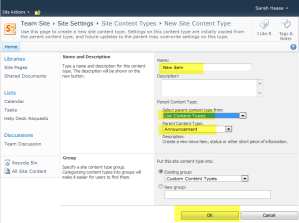
  7. Click OK.
  8. You will be taken to a configuration page for your new content type. Click on the Body field. When the field detail page opens, click Remove. Say OK when you’re prompted to confirm your deletion.
  9. Click on the Expires field. When the field detail page opens, click Remove. Click OK to confirm your deletion.
  10. Click on the Site Settings link in your page’s breadcrumb to return to the main site settings page.
  11. Repeat steps 2-9, this time creating an “Existing item” content type.

Part 2: Add your new content types to your list.

  1. Go to your SharePoint list.
  2. Click on the List subtab and the List Settings icon.

  3. Click on Advanced Settings and set the Allow management of content types field to Yes.
  4. Click OK.
  5. Go to the Content Types section of the page and click on the Add from existing site content types link.

  6. Scroll throught the list of available content types until you find the New item content type you just created. Click on New item and then click on the Add button to move it over to the selection box.
  7. Find and click on Existing item. Click on the Add button to move it over to the selection box.
  8. Click OK. You are now returned to the main list settings page.
  9. Go to the Content Types section of the page and click on the Change new button order and default content type hyperlink.
  10. Uncheck the checkbox for the Item content type and click OK.
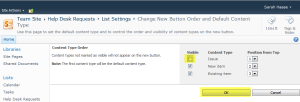
Part 3: Configure your content types to display desired fields.

  1. You should still be on your list settings page. Go to the Content Types section and click on your “New item” content type.
  2. Click on the Add from existing site or list columns hyperlink. Add the fields you want to display on your “custom” NewForm.aspx page.
  3. Use the Column order link to define the order in which your fields display.
  4. Click on the List Settings link in your page’s breadcrumb to return to the list settings page.
  5. Repeat steps 1-4 for the “Existing item” content type.

Part 4: Turn “management of content types” off.

Since we don’t want users to see the Content Type field when they are creating or editing list items, we want to turn off the “management of content types” option. Turning this off doesn’t prevent the content types from running–it just prevents the unwanted Content Type field from displaying.

  1. Go to your List Settings page.
  2. Click on Advanced Settings.
  3. Set the Allow management of content types field to No.
  4. Click OK.

Part 5: Create your SharePoint Designer workflow.

This is the last part of this solution. This workflow will automatically detect that a new item has been created and subsequently convert the new item to the existing item content type. Once this is done, the “for office use only” fields will display for the list item.

  1. Open your site in SharePoint Designer.
  2. While on your Site tab, click on the List Workflow dropdown arrow and select your SharePoint list.
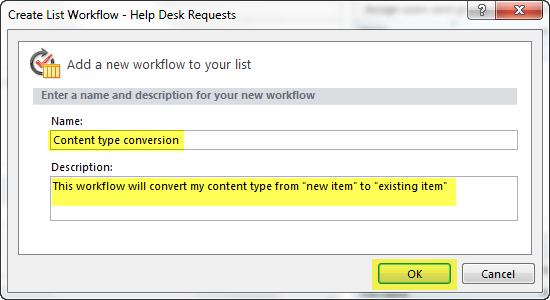
  3. When the following dialog box appears, specify a name and (if desired) a description for your new workflow.
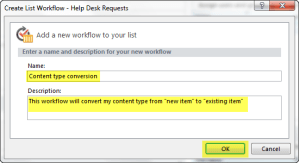
  4. Click OK to save your changes.
  5. The workflow builder page will display. Click on the Action button in your ribbon. Then scroll down to the List Actions section and select Set Field in Current Item.
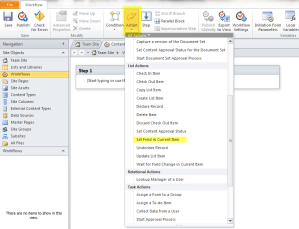
  6. Your workflow will now look like this:

  7. Click on the field hyperlink and select Content Type ID.
  8. Click on the value hyperlink and select Existing item.
  9. Now click on the Workflow Settings button in your toolbar ribbon.
  10. In the Start Options box, check the Start workflow automatically when an item is created option. Next, make sure all other Start Options are unchecked.
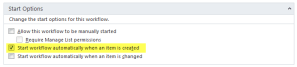
  11. Click on the Publish button in your toolbar ribbon to save and publish your new workflow.

That’s it. Now when users create a new item in your list, your SharePoint Designer workflow will automatically reset the new item’s Content Type field from New item to Existing item. This will cause the edit item screen to display a different set of fields for all your existing list items.

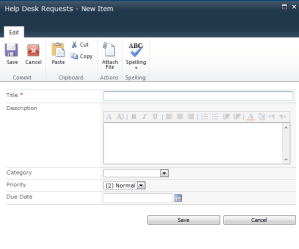
Here is our customized NewForm.aspx page:
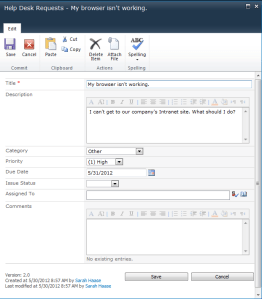
Here is our customized EditForm.aspx page:
For you MOSS 2007 users, here’s the nitty gritty for setup in 2007:

Part 1: Create your new content types.

  1. Click on Site Actions > Site Settings.
  2. Under Galleries, click on Site content types.
  3. Click on the Create button.
  4. In the Name field, type New item.
  5. In the Select parent content type from field, select List Content Types.
  6. In the Parent content type field, select Announcement.
  7. Click OK.
  8. You will be taken to a configuration page for your new content type. Click on the Body field. When the field detail page opens, click Remove. Say OK when you’re prompted to confirm your deletion.
  9. Click on the Expires field. When the field detail page opens, click Remove. Click OK to confirm your deletion.
  10. Click on the Site Content Type Gallery link in your page’s breadcrumb to return to the main site content type gallery page.
  11. Repeat steps 3-9, this time creating an “Existing item” content type.

Part 2: Add your new content types to your list.

  1. Go to your SharePoint list and click Settings > List Settings.
  2. Click on Advanced Settings and set the Allow management of content types field to Yes.
  3. Click OK.
  4. Go to the Content Types section of the page and click on the Add from existing site content types link.
  5. Find and click on New item. Click on the Add button to move it over to the selection box.
  6. Find and click on Existing item. Click on the Add button to move it over to the selection box.
  7. Click OK. You are now returned to the main list settings page.
  8. Go to the Content Types section of the page and click on the Change new button order and default content type hyperlink.
  9. Change the content type order so your “New item” content type is number 1.
  10. Click OK.

Part 3: Configure your content types to display desired fields.

  1. You should still be on your list settings page. Go to the Content Types section and click on your “New item” content type.
  2. Click on the Add from existing site or list columns hyperlink. Add the fields you want to display on your “custom” NewForm.aspx page.
  3. Use the Column order link to define the order in which your fields display.
  4. Click on the Settings link in your page’s breadcrumb to return to the list settings page.
  5. Repeat steps 1-4 for the “Existing item” content type.

Part 4: Turn “management of content types” off.

Since we don’t want users to see the Content Type field when they are creating or editing list items, we want to turn off the “management of content types” option. Turning this off doesn’t impact the content type display of fields–it just prevents the unwanted Content Type field from displaying.

  1. Go to your list’s settings page.
  2. Click on Advanced Settings.
  3. Set the Allow management of content types field to No.
  4. Click OK.

Part 5: Create your SharePoint Designer workflow.

This is the last part of this solution. This workflow will automatically detect that a new item has been created and subsequently convert the new item to the existing item content type. Once this is done, the “for office use only” fields will display for the list item.

  1. Open your site in SharePoint Designer.
  2. Click on File > New > Workflow.
  3. Specify a name for your new workflow (e.g. “Content type conversion”).
  4. Select your list in the provided dropdown field.
  5. Check the box labeled Automatically start this workflow when a new item is created. Make sure the other 2 checkboxes are not checked.
  6. Click on the Next button.
  7. Click on the Actions button and select Set Field in Current Item.
  8. Click on the field hyperlink and select Content Type.
  9. Click on the value hyperlink and select Existing item.
  10. Click on the Finish button.

That’s it. While this looks like a large number of steps, it only takes about 5 minutes to set up. If you want to re-use this solution multiple times in your site collection, set up your “New item” and “Existing item” content types in your site collection’s content type gallery. This ensures that these content types are available for use in all of the sites within your site collection.

Here is our customized NewForm.aspx page:

Here is our customized EditForm.aspx page:
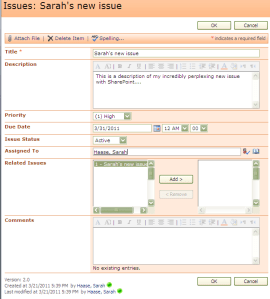
SharePoint Saturday Twin Cities is coming up!

Life is incredibly busy right now….not in small part because SharePoint Saturday Twin Cities is only 3.5 weeks away! This is the third SharePoint Saturday event I’ve helped organize, and I’m always amazed at how fulfilling the work is. Getting the opportunity to partner with GREAT team members to pull the event together, syncing up with sponsors and ensuring there’s enough donuts and Mt. Dew to go around…it’s all a learning experience.

While we had SharePoint Camps in place before we started holding SharePoint Saturdays, we’re really learning what it means to offer quality training to SharePoint end-users. Our last SharePoint Saturday event (held in October 2010) featured our first “Information Worker” track. It proved to be the most popular track of the day–garnering a whole new audience that hadn’t attended previous SharePoint Camp events. We’re continuing the trend with our April 9th SharePoint Saturday event. Look at the lineup of topics for Information Workers:

  • Social Team Sites – The Why and the How
  • Governance for the Enterprise
  • I need some ROI….but I have no idea where to begin!
  • Leveraging SharePoint for Social Media behind the Firewall

And we’re just getting started. We’re also featuring sessions on building solutions with BCS, “caching-in” for SharePoint performance, best practices for cloud deployments, data recovery and legal discovery w/SharePoint, mastering the master page, and using SilverLight and PowerShell. Add in a couple of half-day sessions on learning to crawl/walk/run with SharePoint and managing your upgrade and you have a fantastic day of learning!

It’s all kicking off at 8:30 AM on Saturday, April 9th at Normandale Community College. For more information, a copy of the day’s schedule and registration information, see our website – http://www.sharepointsaturday.org/twincities

Want to learn more about what a SharePoint Saturday event is like? Take a look at videos from our last event:

And remember….there’s still time to register for the April event!

Best Practices 2011 – La Jolla is FABULOUS!

Only a few days back home from Best Practices 2011 conference in La Jolla. What a fabulous trip! The setting was perfect–even for a someone who doesn’t appreciate golf. The grounds were beautiful and the weather was gorgeous.

It’s hard to narrow down the conference into a highlights reel, but here are some of the important bits:

* Meeting some great new people, including Kevin Dorn, Eric from Ebsco Publishing and a couple of other corporate librarians!

* Getting to share SharePoint Saturday planning ideas with Joel Baglien, Virgil Carroll and Veronique Palmer.

* Having some girl time with the Minnesota contingent–including Angela Spores, Tamara Bredemus and the lovely ladies from Capella University!

* Catching up with a wide variety of folks, including Bill English, Ben Curry, Lori Gowin, Kay McClure, Veronique Palmer, Brett Lonsdale, Sara Windhorst, Mark Rackley, Jennifer Mason, Wes Preston, Cathy Dew, Richard Harbridge, Ruven Gotz and Joy Earles. Sorry if I forgot anyone!

* Getting to record a SharePoint Pod Show epidsode with Brett Lonsdale. Our focus was on SharePoint lists–how to use them, how to convince business users to give them a try and how they can help you be a SharePoint success story. Watch for this episode to be released sometime in the next few weeks.

* Attending some fabulous sessions!

I also had the opportunity to present 2 different sessions at the conference. Both went very well, with folks heavily engaged in talking about how to calculate and claim ROI from successful SharePoint implementations. I came away from these sessions with a ton of energy and new ideas!